Features
JuhRadial MX turns the Logitech MX Master 4 (and the MX Master 3S / 3) into a fully programmable Linux power tool: an Actions Ring at the cursor, button remapping and directional gestures, custom actions, thumb-wheel actions, SmartShift scroll, actuator haptics, Easy-Switch host control, per-application profiles, cross-computer JuhFlow, a gaming mode with macros, plugins, and, since 0.4.5, a new Qt/QML Settings app, the MX Keypad's display keys and the MX Keys S.
This page is the feature reference. For installation see Installation, for the on-disk config schema see Configuration, for compositor specifics see Compositor-Support, and for fixes see Troubleshooting.
Note
Most features depend on HID++ and so require a Logitech MX Master. In generic mouse mode (any mouse via evdev) the radial menu and button remapping still work, but Haptics, Easy-Switch, Flow, SmartShift, and the thumb-wheel card are hidden because they need Logitech-specific protocols.
Feature overview
| Feature | What it gives you | Needs HID++ |
|---|---|---|
| Radial Menu | 8-slice Actions Ring with hold-drag or tap selection, themes, skins, icon styles | No |
| The Settings app | Qt/QML app: themes with wallpapers, search, 18 languages, keyboard navigation | No |
| Button & Action Remapping | Every button and every control the mouse reports, for all apps, this mouse or one app | Partial |
| Directional gestures | Drag the gesture button in up to eight directions for more actions | Yes |
| Custom actions | A shortcut, app, command, link, macro or plugin action on any button or slice | No |
| Thumb-Wheel | Bind the side wheel to volume, zoom, or horizontal scroll | Yes |
| Scroll & SmartShift | Pointer speed, wheel mode, SmartShift threshold, HiRes scroll, scroll force | Yes |
| Haptic Feedback | Strength levels, Sense Panel force, a switch and pattern per event | Yes |
| Easy-Switch | Switch between paired computers, see every slot, take the keyboard along | Yes |
| Per-Application Profiles | Override only what you change per app, with its own ring | Yes |
| JuhFlow | Encrypted cross-computer cursor and clipboard (Linux and Mac) | No |
| MX Keypad | Nine display keys with pages, per-app profiles, key art and packs | No (USB) |
| MX Keys S (beta) | Battery, backlight, Easy-Switch follow and key remapping | Yes |
| Gaming Mode + Macros | DPI presets, ring-button job, macros that record and play on Wayland | Partial |
| Plugins and Backup | Your own actions from a folder; config, profiles, macros, icons and themes in one zip | No |
Radial Menu
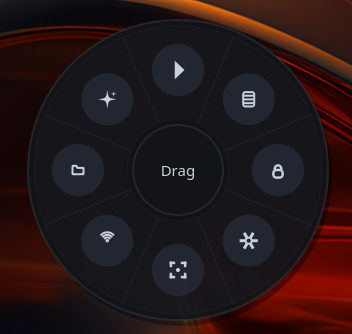
A circular overlay of eight action slices that appears at the cursor. It is drawn by the PyQt6 overlay process and positioned over the pointer wherever you are working.
Triggering it
The ring opens on whichever mouse button is bound to the Radial Menu action. By default that is the dedicated Actions Ring button on the MX Master 4 (the lower thumb control, shown in Settings as Show Actions Ring). The larger gesture button defaults to Virtual Desktops, and the two can be swapped or reassigned on the Buttons page. The gesture button can also run four separate actions by direction (hold, drag up / down / left / right, release), with a plain press keeping its normal action; see Directional gestures.
Hold-drag vs tap
There are two interaction styles, and both work from the same press:
- Hold mode: press and hold the button, drag toward a slice, then release to execute that slice.
- Tap mode: give the button a quick tap. The menu stays open so you can move the pointer and click a slice to execute it.
The 8 slices
Slices are laid out clockwise from the top. The factory defaults are:
| Position | Default action |
|---|---|
| Top | Play / Pause |
| Top-Right | New Note |
| Right | Lock Screen |
| Bottom-Right | Settings |
| Bottom | Screenshot |
| Bottom-Left | Emoji Picker |
| Left | Files |
| Top-Left | AI (submenu) |
Open Settings → Buttons → Actions Ring and click any slice to customize it. Each slice can run one of several action kinds:
- Launch command (for example
flameshot gui,dolphin) - Keyboard shortcut (for example Copy
ctrl+c, Pastectrl+v) - Open Settings
- Submenu (the AI submenu opens Claude, ChatGPT, Gemini, and Perplexity)
- Emoji picker
- Do nothing
Launch commands adapt to your desktop: Screenshot, Files, Note editor, Emoji, and Lock resolve to the right tool for KDE, GNOME, COSMIC, or a generic fallback, so the same slice does the sensible thing on each environment.
Tip
Turn on Easy-Switch Shortcuts on the Buttons page to replace the Emoji slice with an Easy-Switch 1 / 2 / 3 submenu, so you can change host straight from the ring.
Minimal mode
The Minimal Radial HUD toggle (in the settings header) renders the ring as
floating icons only, with no pizza-slice wedges or text labels. It is a
quieter, lower-footprint HUD for users who already know the layout. Backed by
the radial.minimal_mode config key.
Themes, wheel skins and icon styles
Three independent choices, all in Settings → Themes, all applied live on the next menu open without a restart:
- Colour theme: twelve accents, each paired with a matched wallpaper behind the Settings app's glass cards (Azure is the default, then Sky, Indigo, Violet, Emerald, Teal, Cyan, Brass, Amber, Coral, Rose and Magenta). The accent recolours the ring too. Automatic follows your desktop's accent.
- Wheel skin: the material the ring is drawn on, independent of the colour theme: Classic, Classic Light and a set of artistic skins (chrome, glass, brass and more), previewed on hover.
- Icon style: Line, Classic, Mono or Mono 2 (the default for new configs) for the slice glyphs; an app you pick for a slice keeps its own icon.
The ring's outer size, centre zone and icon size are sliders on the Buttons page, or Automatic size fits them to each monitor. The menu also animates: a bloom on open, smooth slice-hover crossfades, a droplet pop-out for submenu items, and a selection flash on the picked slice.
The Settings app
Since 0.4.5 Settings is a PyQt6 + QML application (juhradial-settings, or
the tray icon's Settings entry): frosted glass cards over the theme's
wallpaper, a page per tab (Dashboard, Buttons, Point & Scroll, Haptics,
Gaming, Macros, Apps, Easy-Switch, Devices, Flow, MX Keypad, Themes,
Settings), search across every setting from the header, keyboard shortcuts
(F1 lists them), full keyboard navigation, and 18 languages (Settings →
Language picks one, or the desktop locale by default). The Buttons page shows
your mouse as a photo with clickable callouts (MX Master 4, and the 3 / 3S
body), the Dashboard says whether the mouse is reachable and what needs a
fix, and the Devices page shows live link state, battery, the keyboard
backlight, receivers and copies diagnostics for a bug report.
The Qt app runs on Qt 6.4 and newer (Ubuntu 24.04, Linux Mint 22, Debian 12
and later). What newer Qt adds, the frosted cards from 6.5 and the soft shadows
from 6.9, has plainer stand-ins on older releases, so every page is there. The
GTK4 app stays in the tree as the automatic fallback below Qt 6.4;
JUHRADIAL_SETTINGS=gtk forces it. Whichever app runs is the only writer of ~/.config/juhradial/config.json
and asks the daemon to reload after every save.
Button & Action Remapping
Reassign the mouse's physical buttons to system actions, media keys, clipboard shortcuts, or the radial menu. Configured in Settings → Buttons → Button Assignments.
Remappable buttons and defaults
| Button | Default action |
|---|---|
| Gesture | Virtual Desktops |
| Show Actions Ring (thumb) | Radial Menu |
| Middle | Middle Click |
| Shift-Wheel | SmartShift |
| Forward | Forward |
| Back | Back |
| Horizontal Scroll (thumb wheel) | Scroll Left/Right |
Available actions
Pick from a full catalog: Actions Ring, Virtual Desktops, Left / Right / Middle Click, Back, Forward, Scroll Left / Right, Copy, Paste, Undo, Redo, Screenshot, SmartShift (ratchet / free-spin), Volume Up / Down, Play/Pause, Mute, Zoom In / Out, DPI cycle / up / down and hold-for-precision, next, previous, close and reopen tab, Page Up / Down, Home, End, Easy-Switch to computer 1 to 3 or the next one, gaming mode on / off, Custom action, Do Nothing, plus the portable system actions:
| System action | What it does |
|---|---|
| Show Desktop | Minimize everything to reveal the desktop |
| Switch Desktop Left / Right | Move to the adjacent virtual desktop |
| Task Switcher | Open the window switcher / overview |
| Close Window | Close the active window |
| Maximize Window / Minimize Window | Maximize (toggle) or minimize the active window |
| Lock Screen | Lock the session |
| Calculator | Launch the calculator |
Each system action uses the native mechanism for your desktop (GNOME, KDE, Hyprland, Sway, COSMIC), so it behaves correctly across environments.
Note
Reassigned actions are injected through the kernel uinput device, so they fire on Wayland as well as X11.
How diverting works (and why it is safe)
The gesture and Actions Ring buttons are always handled by the daemon. The back, forward, middle, and shift-wheel buttons are only intercepted (HID++ diverted) when you reassign them away from their native default. Return any of them to its default and the daemon clears the divert, so the hardware behavior comes back immediately, no reconnect required. See Architecture for the divert model in detail.
Directional gestures
Hold the gesture button and drag; on release the drag's direction picks the action, and a press that barely moves keeps the gesture button's own action. Off by default; Settings → Buttons → Directional gestures has the switch, a pad with a picker per direction, presets to start from (Desktops, Browser, Editing, Media) and the drag distance.
- Four directions (up, down, left, right) by default. The four corners are optional diagonals: while they are empty a drag is classified four ways, once one has an action the plane splits into eight 45 degree sectors, and an empty corner hands its drags to the nearest axis.
- Any action the picker offers, including Custom (each direction keeps its own custom action), except the ring itself and precision DPI, which need a hold.
- Drag distance in sensor counts at 1000 DPI (default 15, about 0.4 mm), scaled to the DPI the mouse runs at so the same flick registers at any DPI; the actuator ticks when a drag crosses it.
- The pointer stays put. The gesture button is diverted with raw XY, so the mouse reports the drag over HID++ instead of moving the cursor. A directional press never opens or closes the ring, and it works on every compositor. It applies to the HID++-diverted gesture button (the normal state on the MX Master 4, 3S and 3), not to the evdev-only fallback path.
Custom actions
Custom on any button, direction or ring slice opens the same editor:
- a shortcut, recorded from the keyboard (modifier chips plus a key list that covers F13 to F24, Print, Insert and keys the desktop grabs first), with Hold while pressed to keep it down for as long as the button is held (push to talk);
- an application from your installed apps, with its real icon;
- a command line, or a link (http, https or mailto);
- a saved macro or a plugin action;
- on the MX Keypad also a text to paste and a jump to a page.
Invalid shortcuts and links are refused before they are saved. Custom actions
are kept per button (and per app profile, or for this mouse only) under
buttons.custom in config.json.
Thumb-Wheel
The small side thumb-wheel on the MX Master can drive a system action instead of its default behavior. Configured in Settings → Point & Scroll → Thumb Wheel (Logitech only).
| Control | Options |
|---|---|
| Action | Off · Volume · Horizontal scroll · Zoom |
| Invert Direction | Reverse which way rotation maps |
| Speed | 1 to 8 (repeats applied per rotation notch) |
- Volume and Zoom divert the wheel to HID++ notifications and re-inject the action. Zoom uses layout-independent keys, so it works on non-US keyboards.
- Horizontal scroll keeps the wheel's native hardware scrolling, which is reliable on every compositor.
- Off leaves the wheel at its native behavior.
Invert is applied in software, and Speed reaches the daemon through the config reload, so neither needs a special hardware command.
Scroll & SmartShift
Pointer and scroll tuning lives on the Point & Scroll page.
Pointer speed (DPI)
- DPI slider from 400 to 8000, with quick presets 800 / 1600 / 3200 / 4000.
- Click the DPI readout to type an exact value.
- Acceleration Profile: Adaptive (recommended), Flat (linear), or System Default.
Scroll wheel mode
A three-way selector matching the hardware modes:
| Mode | Behavior |
|---|---|
| Ratchet | Click-to-click detents |
| SmartShift | Auto-switch to free-spin when you flick the wheel |
| Free-spin | Always frictionless |
In SmartShift mode a Sensitivity slider (1 to 100%, Easy to Hard) sets how hard you must flick before the wheel releases into free-spin. Click the percentage to type an exact value.
Other scroll controls
- Speed: lines scrolled per wheel notch (1 to 10), applied per compositor (GNOME, KDE, Hyprland, Sway, X11).
- Natural Scrolling: content follows finger direction.
- Smooth Scrolling: high-resolution (HiRes) scroll for smoother movement.
Haptic Feedback
The MX Master 4's actuator can fire a tuned pulse on radial-menu events. Configured in Settings → Haptic Feedback, which shows a live animated actuator trace of the selected waveform.
Per-event patterns
Assign a waveform to each interaction independently, or use Apply to All to set them in one move:
| Event | Default pattern |
|---|---|
| Menu Appear | Soft Click (damp_state_change) |
| Slice Hover | Subtle (subtle_collision) |
| Selection | Sharp Click (sharp_state_change) |
| Invalid Action | Alert (angry_alert) |
Waveform library and presets
Sixteen HID++ predefined waveforms are available, including Sharp Click, Soft Click, Sharp Bump, Soft Bump, Subtle, Whisper, Happy, Alert, Complete, Square Wave, Wave, Firework, Knock, Jingle, and Ringing.
Above the per-event list, quick presets (Tick, Bump, Pulse, Ramp, Double, Off) apply a feel to every event at once and show its intensity, duration, and sharpness on the trace. The Test pulse button plays the selected preset on the device so you can feel it before committing.
A master switch turns haptics off entirely; when off, the trace idles and Test does nothing, matching the daemon. Debounce timings (to avoid rapid-fire pulses during fast cursor movement) are tunable in the config file; see Configuration.
Easy-Switch
Switch the mouse between the computers it is paired to, and see their real names. Configured in Settings → Easy-Switch.
- Paired computers: up to three host slots, auto-detected from the mouse's pairing state. Names are read from the device over HID++ and reflect the computer names set during pairing.
- Switch hosts: click a slot to move the mouse to that computer. The active slot is marked, and switching is instant.
- OS per slot: tag each host as Linux, Windows, macOS, iOS, Android, ChromeOS, or Unknown. The chosen OS drives the icon shown in the radial Easy-Switch submenu.
- Refresh: re-detect slots after you add or remove pairings on the mouse/receiver side.
Per-Application Profiles
DPI, button assignments, and scroll settings can switch automatically as you change the focused window. Active-window tracking is supported on KDE, Hyprland, and X11.
- Add a profile with the + (Add Application) control in the settings header, matched to a window class.
- Each profile carries its own hardware state (DPI, SmartShift, HiRes scroll mode, and per-button actions), applied by the daemon on every focus change.
- A grid view lets you review, edit, and remove application profiles.
The default profile applies whenever the focused window has no specific match, so unconfigured apps keep your global settings.
JuhFlow
-000000?style=for-the-badge&logo=apple&logoColor=white)
Move one cursor across multiple machines and share the clipboard between them, peer-to-peer with no cloud. Configured in Settings → Flow.
- Cross-computer control: glide the pointer to a screen edge and it crosses over to the linked computer. Works between Linux and Mac.
- Encrypted end to end: X25519 key exchange plus AES-256-GCM. All traffic is encrypted; the Link Status card surfaces connection state, latency, throughput, and how long the peers have been paired.
- Zero config discovery: peers auto-discover each other on the local network (mDNS / Zeroconf). Use Scan Network to refresh.
- Clipboard sharing: copy on one machine, paste on the other.
Setup
| Side | Steps |
|---|---|
| Linux | Built in. Enable Cross-screen cursor in Settings → Flow. |
| Mac | Download JuhFlow.dmg (signed and notarized), install, and pair. |
Edge and indicator controls
- Edge to cross: Left, Right, or Top (Bottom is also selectable).
- Edge sensitivity: how eagerly the edge triggers a crossing.
- Monitor: which screen detects edges and shows the indicator.
- Hide indicator and Extend edge trigger area for fine-tuning the feel.
Warning
If you quit JuhRadial MX while JuhFlow is connected, restart JuhFlow on the Mac side and reconnect. Windows support is planned.
MX Keypad
The Logitech MX Keypad (USB) gets its own tab in Settings. Its nine display
keys show an icon and label each, grouped in pages the two page buttons
flip through. A key can run a shortcut, app, command, macro, plugin action,
paste a text (exact characters on every keyboard layout, optional Enter),
hold a shortcut while pressed, go to a page, open a folder of keys, or be
a two-state key (mute on / off). Pages can belong to apps and come up by
themselves while that app is in front, with 27 ready profiles (browsers,
editors, terminals, media, meetings, creative tools, and profiles for Claude
Code and Codex) suggested for the apps you use most. Keys take glyphs, any
installed app's icon, your own picture, animated GIF or WebP, key art from a
gallery in two styles, a colour per key and a brightness setting; your own
profiles export as packs that Import pack restores. While the screen is
locked the keys go blank on desktops that report the lock to logind, such as
KDE Plasma and GNOME; other lock screens (swaylock, hyprlock) leave the keys
active for now. Scripts can paint a key live over D-Bus. The daemon drives the
displays through the separate mx-keypad protocol crate.
MX Keys S (beta)
Opt-in, off by default, and nothing in this path touches a mouse-only
install. With the keyboard's support turned on in Settings → Devices the
daemon reads its battery over HID++ (shown live with a low-battery alert),
reads and sets the backlight (Automatic or Manual, the level, and how long
it stays on, on battery and on a cable), and follows Easy-Switch both ways
when "Mouse and keyboard move together" is on: switching the mouse takes the
keyboard along (matched by computer name, a sleeping keyboard follows when it
wakes), and an Easy-Switch key on the keyboard takes the mouse. A
keyboard.remap table rewrites keys on the first physical keyboard (CapsLock
to Ctrl and friends) through a virtual keyboard. Presence is read from the
receiver's pairing table, so the keyboard shows up even while its radio
sleeps.
Gaming Mode + Macros
Gaming Mode
A profile aimed at games, configured in Settings → Gaming.
- Enable Gaming Mode: master toggle, also in the tray menu, or automatic while Feral GameMode runs a game or a listed app is in front (it only undoes what it switched on itself).
- Show Radial Menu: allow or suppress the ring while gaming, to prevent accidental activation mid-game.
- DPI presets: up to five, each with a name, colour and DPI value, the active one applied at once while gaming mode is on.
- Ring button job: precision DPI while held, or cycling the presets, instead of the ring while gaming.
- Wheel lock: keep the wheel in ratchet or free-spin during a game.
Macros
A full macro engine, edited in the timeline macro studio at Settings → Macros.
- Steps: key sequences, delays, text typing, and mouse actions, arranged on a millisecond timeline.
- Repeat modes: Once, While Holding, Toggle On/Off, Repeat N Times, and Sequence.
- Record: capture a sequence from every keyboard and mouse (clicks included, with the recorded timing), then refine the steps.
- Playback on Wayland through the kernel's uinput, and binding to a mouse button that takes effect without a restart.
Macros pair with gaming mode through evdev capture: bind any mouse button (side buttons, extra buttons) on essentially any mouse with extra buttons to a macro, with a capture dialog that detects exactly the button you press.
Plugins
A folder in ~/.config/juhradial/plugins/ with a plugin.json adds actions
that run a command, a D-Bus call or a script shipped in the folder. They
appear in the slice action picker under the plugin's name, in the Custom
editor, and in Settings → Settings → Plugins with the reason when a
manifest is invalid. Two examples ship in examples/plugins/. The manifest
format is on the Plugins page.
Backup
Settings → Settings → Backup writes one zip with config.json,
profiles.json and the files under macros/, icons/ and themes/, and
restores such a file on this or another machine; the same runs from the
command line as juhradiald --export FILE and juhradiald --import FILE.
Import validates the whole archive before touching the disk, keeps the
replaced files as .bak, and reloads a running daemon. Plugin folders and Flow
pairing keys are not part of the archive: plugins are copied by hand, and the
keys never leave the machine.
Command line
juhradial-mx with a command talks to the running service and exits. It opens no window and needs no display, so it works over SSH, in scripts and on a keyboard shortcut.
| Command | What it does |
|---|---|
juhradial-mx status |
The mouse, its link, battery, DPI and Easy-Switch computer, and the MX Keypad. --json prints the same as JSON. |
juhradial-mx doctor |
Checks the service, the menu, the input group, the device nodes, the udev rules, the session and Qt, and prints the fix for each point that is wrong. Exits 1 when something has to be fixed. |
juhradial-mx dpi |
Prints the DPI; juhradial-mx dpi 1600 sets it (snapped to the mouse's step). |
juhradial-mx host 2 |
Sends the mouse to Easy-Switch computer 2. |
juhradial-mx keypad-page 3 |
Shows page 3 on the MX Keypad. |
juhradial-mx reload |
Has the service read config.json again after a hand edit. |
Without a command, juhradial-mx starts the radial menu as before.
See also
- Configuration: the
~/.config/juhradial/config.jsonschema for every setting above - Plugins: the
plugin.jsonmanifest and the two examples - Compositor-Support: per-compositor cursor and positioning behavior
- Architecture: daemon, overlay, D-Bus, and the HID++ divert model
- Troubleshooting: fixes for menu position, detection, and permissions
- FAQ: common questions
- Home: project overview and quick links